
HTML Basics
HTML stands for HyperText Markup Language and is the foundational language used to create webpages. It provides the structure of a document by defining elements that browsers interpret and render. Understanding the basic vocabulary of HTML …
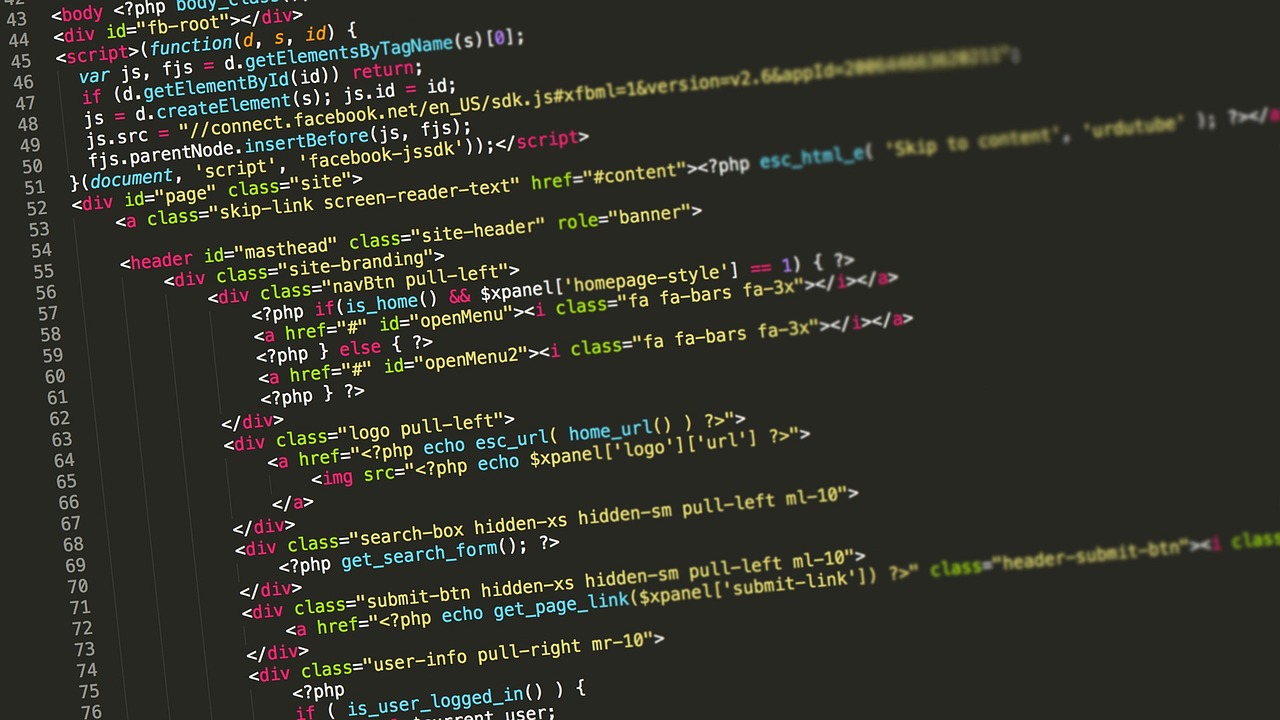
HTML stands for HyperText Markup Language and is the foundational language used to create webpages. It provides the structure of a document by defining elements that browsers interpret and render. Understanding the basic vocabulary of HTML is essential for any front‑end developer because every piece of content on the web is ultimately built from these building blocks.
Element is a generic term for any unit of markup that appears in an HTML document. An element typically consists of an opening tag, optional content, and a closing tag. For example, the paragraph element is written as <p>Paragraph text</p>. The opening tag <p> and the closing tag </p> together form the element, and the text between them is the element’s content.
Tag refers specifically to the markup that delineates an element. Tags are enclosed in angle brackets. The opening tag includes the element’s name, while the closing tag repeats the name preceded by a forward slash. Some tags are self‑closing, such as the line break element <br />, which does not require a separate closing tag because it contains no content.
Attribute provides additional information about an element. Attributes appear inside the opening tag and consist of a name, an equals sign, and a quoted value. For instance, the image element uses the src attribute to specify the location of the image file: <img src="logo.Png" alt="Company logo" />. The alt attribute supplies alternative text for accessibility and SEO purposes.
Attribute value is the data assigned to an attribute, always placed within quotation marks (either single or double). While most attributes require a value, boolean attributes such as disabled or checked can be written without an explicit value; the presence of the attribute alone conveys a true state.
Opening tag and closing tag are the two halves of a typical element. The opening tag introduces the element and may contain attributes, whereas the closing tag signals the end of the element’s content. In the case of a self‑closing tag, the element is considered complete with just one tag that ends with a forward slash before the closing angle bracket.
Self‑closing tag (also called a void element) is an element that does not wrap any content. Common examples include <img />, <hr />, and <meta />. These tags must end with a slash in XHTML syntax, but in HTML5 the slash is optional; however, using it consistently helps maintain readability.
Nesting describes the practice of placing one element inside another. Proper nesting ensures that tags are closed in the reverse order of their opening. For example, a list item inside an unordered list is written as <ul><li>Item</li></ul>. Incorrect nesting, such as closing a parent element before its child, can cause rendering errors and unpredictable behavior.
Hierarchy refers to the tree‑like structure formed by nested elements. The topmost node is the document root, represented by the <html> element. Beneath the root are the <head> and <body> sections, each containing their own child elements. Understanding hierarchy is crucial for both styling with CSS and scripting with JavaScript, because selectors and DOM methods rely on the element’s position in the tree.
DOM stands for Document Object Model. It is a programming interface that treats the HTML document as a structured set of objects, allowing scripts to manipulate elements, attributes, and content dynamically. When a browser loads an HTML page, it parses the markup into the DOM, which can then be accessed via methods like document.GetElementById or document.QuerySelector.
Doctype declaration appears at the very top of an HTML document and informs the browser which version of HTML to use for parsing. The modern declaration <!DOCTYPE html> triggers standards mode in all major browsers and is required for proper rendering of HTML5 features.
Head section, encapsulated by the <head> element, contains metadata that is not displayed directly on the page. Typical contents include the <title>, <meta> tags, stylesheet links, and script references that should be loaded before the body renders.
Body section, defined by the <body> element, holds the visible content of the page – text, images, forms, and interactive components. All elements that a user sees are children of the body element, making it the primary focus for layout and design.
Title element is placed inside the head and defines the text shown on the browser tab and in search engine results. Example: <title>My Portfolio</title>. The title should be concise, descriptive, and contain relevant keywords for SEO.
Meta tags provide metadata such as character encoding, viewport settings, and search engine instructions. A common meta tag for responsive design is <meta name="viewport" content="width=device-width, initial-scale=1">. Another essential meta tag specifies the character set: <meta charset="UTF-8">.
Link element is used to associate external resources, most frequently stylesheets, with the HTML document. The syntax <link rel="stylesheet" href="styles.Css"> tells the browser to load the CSS file located at “styles.Css”. The rel attribute defines the relationship type, while href provides the URL.
Script element embeds or references JavaScript code. Inline scripts appear between opening and closing tags, for example <script>console.Log('Hello');</script>. External scripts are linked using the src attribute: <script src="app.Js"></script>. Placing scripts at the end of the body improves page load performance because HTML is parsed first.
Style element allows embedded CSS directly within the HTML document. It is placed inside the head: <style>body {font-family: Arial;}</style>. While convenient for small examples, linking to an external stylesheet via link is preferred for maintainability.
Comment syntax in HTML uses to enclose notes that are ignored by the browser. For example, . Comments are useful for documenting sections of markup, temporarily disabling code, or providing hints to future developers.
Whitespace includes spaces, tabs, and line breaks. HTML collapses consecutive whitespace characters into a single space when rendering, which means that formatting the source code for readability does not affect the visual output. However, inside <pre> elements, whitespace is preserved.
Case sensitivity in HTML5 is largely relaxed: Tag and attribute names are case‑insensitive, though the convention is to use lowercase for consistency. Attribute values, especially URLs and filenames, may be case‑sensitive depending on the server’s operating system.
Block‑level element occupies the full width of its parent container and starts on a new line. Examples include <div>, <p>, <h1>, and <section>. Block elements can contain other block or inline elements, forming the main structural layout.
Inline element does not start on a new line; it only occupies the space required by its content. Typical inline elements are <span>, <a>, <strong>, and <img>. Inline elements cannot contain block‑level elements, which ensures the document flow remains predictable.
Semantic element conveys meaning about its content beyond mere presentation. Semantic tags such as <header>, <nav>, <main>, <article>, <section>, and <footer> help search engines and assistive technologies understand the page’s structure, improving accessibility and SEO.
Attribute categories include global attributes (applicable to all elements), event attributes (e.G., onclick, onload), and specific attributes that only apply to certain tags. Global attributes include class, id, style, and title. The class attribute groups elements for CSS styling, while id provides a unique identifier for scripting and linking.
Class attribute values can be a single word or a space‑separated list of classes. Example: <div class="card highlighted">. Multiple classes enable flexible styling by combining reusable component definitions.
ID must be unique within the document. Using <section id="about"> creates a target that can be linked via <a href="#about">About</a>. Because IDs must be unique, they are often used for JavaScript hooks or anchor navigation.
Anchor element <a> creates hyperlinks. The href attribute specifies the destination URL. Example: <a href="https://Example.Com">Visit Example</a>. Anchors can also link to internal sections using fragment identifiers (e.G., #section1).
Image element <img> embeds pictures. Required attributes include src (source URL) and alt (alternative text). Example: <img src="photo.Jpg" alt="A scenic mountain view">. The width and height attributes can hint at the image’s dimensions to reduce layout shifting.
List structures are fundamental for grouping related items. An unordered list uses <ul> with <li> children, while an ordered list uses <ol>. Example: <ul> ≪li>Apples</li> ≪li>Bananas</li> ≪li>Cherries</li> ≪/ul>. Nested lists are created by placing another <ul> or <ol> inside a <li>.
Table elements organize data in rows and columns. The <table> container holds <thead>, <tbody>, and optional <tfoot>. Table rows (<tr>) contain header cells (<th>) or data cells (<td>). A basic table looks like: <table> ≪thead> ≪tr><th>Name</th><th>Age</th></tr> ≪/thead> ≪tbody> ≪tr><td>Jane</td><td>28</td></tr> ≪tr><td>Mike</td><td>34</td></tr> ≪/tbody> ≪/table>. Adding caption with <caption> improves accessibility.
Form elements collect user input. The <form> tag defines a submission context, with attributes such as action (target URL) and method (GET or POST). Inside a form, various input controls are used:
- <input> with type attribute (text, password, email, checkbox, radio, submit, etc.). - <textarea> for multi‑line text. - <select> with <option> for dropdown lists. - <button> for clickable actions.
Example form snippet: <form action="/submit" method="post"> ≪label for="email">Email:≪/label> ≪input type="email" id="email" name="email" required> ≪button type="submit">Send</button> ≪/form>. The label element improves accessibility by associating text with a form control via the for attribute.
Label elements are crucial for screen readers. When a label is correctly linked to an input, users navigating with assistive technology hear a clear description of the field. The for attribute must match the input’s id.
Fieldset groups related form controls, and legend provides a caption for the group. Example: <fieldset> ≪legend>Personal Information</legend> ≪label>First name:≪input type="text" name="first"></label> ≪/fieldset>. This semantic grouping enhances both visual organization and accessibility.
Header element <header> typically contains introductory content such as a logo, navigation, or headline. Placing a <nav> element inside a header creates a clear site‑wide navigation area.
Nav element defines a block of navigation links. Example: <nav> ≪ul> ≪li><a href="/home">Home</a></li> ≪li><a href="/about">About</a></li> ≪li><a href="/contact">Contact</a></li> ≪/ul> ≪/nav>. Search engines often treat <nav> as a primary navigation region.
Main element <main> encloses the dominant content of the page, excluding repeated sections like headers, footers, and sidebars. It should appear only once per page to convey the core message.
Section element groups thematically related content. It can be used for distinct topics within the main area, each possibly containing its own heading.
Article element represents a self‑contained composition that could be syndicated independently, such as a blog post, news story, or forum entry. An <article> may contain its own <header>, <section>, and <footer>.
Aside element holds tangential content, like sidebars, pull quotes, or related links. Placing an <aside> inside a <section> can provide supplemental information without disrupting the main narrative flow.
Footer element appears at the bottom of a page or section, containing copyright notices, contact details, or navigation to less important pages.
Figure and figcaption elements work together to associate a caption with an image, illustration, or code block. Example: <figure> ≪img src="diagram.Png" alt="Network diagram"> ≪figcaption>Figure 1: Network topology</figcaption> ≪/figure>. This semantic pairing improves content discoverability.
Audio and Video elements embed multimedia. They support multiple <source> elements for fallback formats. Example: <video controls> ≪source src="movie.Mp4" type="video/mp4"> ≪source src="movie.Webm" type="video/webm"> Your browser does not support the video tag. ≪/video>. The controls attribute adds a default playback interface.
Canvas element provides a bitmap drawing surface for scripts. It is empty in the markup but accessed via JavaScript: var ctx = document.GetElementById('myCanvas').GetContext('2d');. This enables dynamic graphics, games, and data visualizations.
SVG (Scalable Vector Graphics) allows embedding vector images directly in HTML. An inline SVG can be styled with CSS and animated with JavaScript. Example: <svg width="100" height="100"> ≪circle cx="50" cy="50" r="40" stroke="green" fill="yellow"/> ≪/svg>. Because SVG is XML‑based, it scales without loss of quality.
Doctype declaration is not a tag but a required instruction for the browser. Omitting it can trigger quirks mode, causing older rendering rules to apply and potentially breaking modern layouts.
Character encoding is defined by the <meta charset="UTF-8"> tag, ensuring that the document correctly displays international characters, symbols, and emojis. Using UTF‑8 is considered best practice for global compatibility.
Viewport meta tag controls the layout on mobile devices. Setting width=device-width and initial-scale=1 tells browsers to match the page’s width to the device’s screen, preventing unwanted zooming.
Accessibility terminology includes concepts like ARIA (Accessible Rich Internet Applications). ARIA attributes such as role, aria‑label, and aria‑expanded provide additional context for assistive technologies when native HTML semantics are insufficient.
SEO (Search Engine Optimization) relies heavily on proper markup. Using semantic tags, meaningful alt text, descriptive title, and a logical heading hierarchy (<h1> through <h6>) helps search engines understand page content and rank it appropriately.
Heading elements (<h1>–<h6>) structure the document’s outline. The <h1> tag represents the primary title, while subsequent headings denote sub‑sections. Consistent heading order improves both readability and SEO.
Paragraph element <p> wraps blocks of text. Browsers automatically add vertical spacing before and after paragraphs, making them a convenient way to separate content.
Bold and Italic formatting can be achieved with <strong> and <em> respectively. These tags convey semantic emphasis; browsers typically render them as bold and italic, but they also inform screen readers of emphasis intensity.
Div element is a generic container used for grouping other elements. Since <div> carries no inherent meaning, it is often combined with class or id attributes to apply layout or styling rules.
Span element is the inline counterpart to <div>. It allows developers to target small fragments of text for styling or scripting without breaking the flow.
Entity references encode special characters that would otherwise be interpreted as markup. For example, < represents the less‑than sign (<), and inserts a non‑breaking space.
Do not forget that HTML is forgiving: Browsers often attempt to correct malformed markup. However, writing clean, valid HTML reduces the risk of unexpected layout issues and improves maintainability.
**Practical Example: Building a Simple Webpage**
Below is a complete example that incorporates many of the terms described above. The code is annotated with comments (which are not displayed to the user) to illustrate each concept.
<!DOCTYPE html> <html lang="en"> <head> <meta charset="UTF-8"> <meta name="viewport" content="width=device-width, initial-scale=1"> <title>My First Page</title> <link rel="stylesheet" href="styles.Css"> <!-- Inline style for demonstration purposes --> <style> Body {font-family: Arial, sans-serif; margin: 0; Padding: 0;} Header, footer {background: #333; color: #fff; text-align: center; padding: 1rem;} Nav ul {list-style: None; padding: 0; Display: Flex; justify-content: Center;} Nav li {margin: 0 1Rem;} Nav a {color: #fff; text-decoration: none;} Main {padding: 2Rem;} .Card {border: 1Px solid #ccc; border-radius: 4px; padding: 1rem; margin-bottom: 1rem;} .Highlight {background: #ff0;} ≪/style> </head> <body> <header> <h1>Welcome to My Site</h1> <nav> ≪ul> ≪li><a href="#home">Home</a></li> <li><a href="#about">About</a></li> <li><a href="#contact">Contact</a></li> </ul> ≪/nav> </header>
<main id="home"> <section class="card highlight"> <h2>About This Page</h2> <p>This page demonstrates core HTML concepts. It uses semantic elements, attributes, and includes a simple form.≪/p> <figure> ≪img src="sample.Jpg" alt="Sample image showing layout"> ≪figcaption>Figure 1: Layout example</figcaption> ≪/figure> </section>
<section class="card"> <h2>Contact Form</h2> <form action="/submit" method="post"> ≪label for="name">Name:≪/label> ≪input type="text" id="name" name="name" required> ≪br> ≪label for="email">Email:≪/label> ≪input type="email" id="email" name="email" required> ≪br> ≪button type="submit">Send</button> ≪/form> </section> </main>
<footer> <p>© 2026 My Site. All rights reserved.≪/p> </footer>
<script src="app.Js"></script> </body> </html>
**Explanation of the Example**
- The doctype tells the browser to use HTML5 standards. - The html tag includes a lang attribute, indicating the page language. - Inside <head>, the meta charset and meta viewport tags ensure proper character rendering and responsive behavior. - The title element provides the text shown in the browser tab. - A link element references an external stylesheet, while an inline <style> block demonstrates quick styling. - The header contains a main heading (<h1>) and a nav list of links that use fragment identifiers to jump to sections within the page. - The main element holds two section elements, each styled as a “card”. The first section includes a figure with an img and a figcaption. - The second section showcases a form with label elements linked to input fields via the for attribute, ensuring accessibility. - The footer provides a simple copyright notice. - Finally, a script tag loads external JavaScript, which could be used to enhance interactivity.
**Practical Challenges for Learners**
1. Tag Identification Challenge – Open a webpage in the browser, right‑click and select “View Page Source”. Locate the <header>, <nav>, and <footer> tags. Write down the hierarchy you observe. This reinforces the concept of hierarchy and nesting.
2. Attribute Experiment – Modify the src attribute of an <img> tag to point to a different image URL. Observe how the alt text appears when the image fails to load. This demonstrates the role of alternative text for accessibility and error handling.
3. Semantic Replacement – Take a page that uses generic <div> containers for navigation and replace them with appropriate semantic tags (<nav>, <ul>, <li>). Use a validator (such as the W3C Markup Validation Service) to confirm that the page remains valid. This exercise highlights the importance of semantic markup.
4. Form Validation Challenge – Add the required attribute to all input fields in a form. Attempt to submit the form without filling in the fields and note the browser’s response. Then, enhance the form with pattern attributes to enforce specific formats (e.G., A phone number pattern). This emphasizes how attributes can control user input.
5. Responsive Design Test – Using the meta viewport tag, create a simple layout with two columns inside a <section>. Apply CSS media queries to stack the columns on narrow screens. Resize the browser window to see the layout adapt. This practical task links HTML structure with CSS responsiveness.
6. ARIA Role Assignment – Insert a custom interactive widget, such as a collapsible panel, using <div> elements. Add ARIA attributes like role="region" and aria‑expanded="false". Write JavaScript to toggle the aria‑expanded value when the panel is opened or closed. Test with a screen‑reader emulator to verify that the state changes are announced.
7. SEO Audit – Build a page with multiple heading levels. Use the browser’s “Inspect” tool to view the document outline (available in most dev tools). Ensure that there is only one <h1> and that subsequent headings follow a logical hierarchy. Submit the page to a free SEO analyzer to see how well the markup is interpreted.
8. HTML Validation – Write a small HTML snippet containing intentional errors, such as an unclosed <ul> or a missing alt attribute on an <img>. Run the code through the W3C validator and note the warnings. Then correct the errors and re‑validate. This reinforces the practice of writing standards‑compliant markup.
9. Entity Usage – Insert special characters like the less‑than sign (<) and the ampersand (&) into a paragraph. Use entity references (< and &) to display them correctly. Observe how the browser renders the characters versus the raw markup.
10. Embedding Multimedia – Add a <video> element with multiple <source> tags for different formats (MP4 and WebM). Include a fallback message for browsers that do not support the <video> tag. Test the playback on various browsers to understand format compatibility.
**Common Pitfalls and How to Avoid Them**
- **Missing Closing Tags** – Forgetting to close an element can cause the browser to auto‑close it at an unexpected location, breaking layout. Always pair opening and closing tags, and use an editor with tag‑matching features.
- **Incorrect Nesting** – Placing a block‑level element inside an inline element (e.G., <span><div>…</div></span>) is invalid HTML. Review the HTML specification for each element’s content model to ensure proper nesting.
- **Duplicate IDs** – Using the same id on multiple elements leads to ambiguous references for CSS and JavaScript. Verify uniqueness by scanning the document or using a linting tool.
- **Omitted Alt Text** – Images without alt attributes are inaccessible to screen readers and can harm SEO. Always provide concise, descriptive alternative text unless the image is purely decorative, in which case an empty alt (“”) is appropriate.
- **Overusing Inline Styles** – While <style> or the style attribute can be handy for quick tests, relying on them makes maintenance difficult. Prefer external stylesheets and keep presentation separate from markup.
- **Ignoring Semantic Elements** – Substituting generic <div> for meaningful tags reduces the page’s semantic richness. Adopt semantic elements whenever they convey the intended meaning, such as <nav> for navigation or <article> for independent content.
- **Improper Doctype** – Omitting the doctype or using an outdated one triggers quirks mode, causing legacy rendering rules to apply. Always start documents with <!DOCTYPE html>.
- **Invalid Attribute Values** – Supplying an incorrect value (e.G., A non‑URL string for src) leads to broken resources. Validate URLs and paths, and test resource loading in the browser.
- **Neglecting Accessibility** – Failing to associate label elements with form controls or omitting ARIA attributes for custom widgets creates barriers. Use tools like axe or Lighthouse to audit accessibility.
**Advanced Vocabulary for Future Growth**
As you become comfortable with core HTML terminology, you will encounter more specialized terms that deepen your expertise:
- **Custom Data Attributes** – Prefixed with data-, these allow embedding private data in markup. Example: <div data-user-id="42">. JavaScript can retrieve the value via element.Dataset.UserId.
- **Shadow DOM** – A feature of Web Components that encapsulates markup, style, and behavior, preventing external CSS from leaking in. It is created with element.AttachShadow({mode: 'Open'}).
Key takeaways
- Understanding the basic vocabulary of HTML is essential for any front‑end developer because every piece of content on the web is ultimately built from these building blocks.
- The opening tag <p> and the closing tag </p> together form the element, and the text between them is the element’s content.
- Some tags are self‑closing, such as the line break element <br />, which does not require a separate closing tag because it contains no content.
- For instance, the image element uses the src attribute to specify the location of the image file: <img src="logo.
- While most attributes require a value, boolean attributes such as disabled or checked can be written without an explicit value; the presence of the attribute alone conveys a true state.
- In the case of a self‑closing tag, the element is considered complete with just one tag that ends with a forward slash before the closing angle bracket.
- These tags must end with a slash in XHTML syntax, but in HTML5 the slash is optional; however, using it consistently helps maintain readability.